

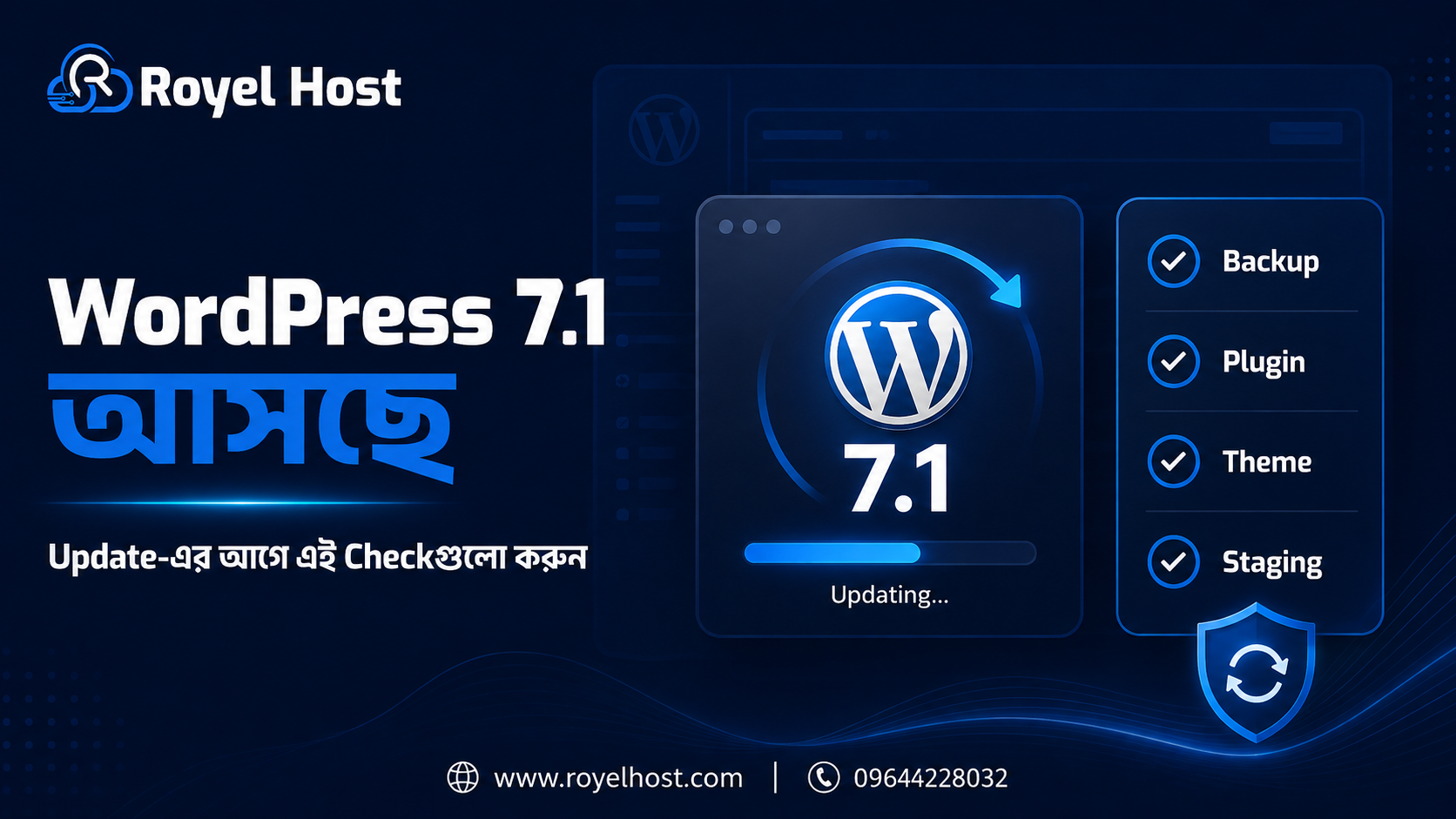
WordPress 7.1 আসছে: Update করার আগে কী কী Check করবেন?
WordPress 7.1 update button দেখলেই সঙ্গে সঙ্গে production website-এ click করা ঠিক হবে না। বিশেষ করে আপনার site যদি business website, WooCommerce store, membership site, LMS, booking system বা custom plugin/theme-এর ওপর নির্ভর করে, তাহলে major WordPress update-এর আগে কয়েকটি compatibility ও recovery check করা জরুরি।
WordPress 7.1-এর final release 19 August 2026-এর জন্য scheduled। Release Candidate stage-এ WordPress Core production বা mission-critical website-এ RC install না করে test server বা staging site-এ evaluate করার পরামর্শ দিয়েছে। এটি important কারণ 7.1 শুধু visual update নয়; editor, media processing, responsive styling, APIs এবং developer-facing behaviour-এও পরিবর্তন আছে।
ভালো খবর হলো—প্রতিটি site-এ সমস্যা হবেই এমন নয়। কিন্তু backup, staging, plugin/theme compatibility, PHP/database environment এবং critical user flow আগে test করলে update-এর risk অনেক কমানো যায়। এই guide-এ update-এর আগে কী check করবেন, কীভাবে safeভাবে update করবেন এবং update-এর পর কোনগুলো verify করবেন—ধাপে ধাপে দেখানো হয়েছে।
WordPress 7.1 কখন Release হচ্ছে?
Official WordPress release schedule অনুযায়ী WordPress 7.1-এর General Release 19 August 2026। Release Day Process-এ 17 August-এ RC4 ও extended code freeze-এর কথা বলা হয়েছে, অর্থাৎ release এখন final verification stage-এ। Schedule last-minute blocker পাওয়া গেলে change হতে পারে, তাই dashboard-এ update দেখার আগে official release status confirm করা ভালো।
বাংলাদেশের user-এর জন্য একটি practical detail: final publication event UTC time অনুযায়ী late 19 August-এ scheduled হওয়ায় Bangladesh time-এ update availability early 20 August-এ দেখা যেতে পারে। তাই '19 August হয়েছে, update এখনও আসেনি'—এটা নিয়ে চিন্তার প্রয়োজন নেই।
WordPress 7.1-এ কী কী বড় পরিবর্তন আসছে?
Responsive Styling আরও শক্তিশালী
WordPress 7.1 editor-এ block-এর responsive styling এবং interactive state styling আরও built-inভাবে নিয়ে আসছে। Theme author custom breakpoint define করতে পারবেন, এবং কিছু design কাজ custom CSS ছাড়া editor থেকেই করা সহজ হবে। Block theme বা heavily customized Site Editor website হলে staging-এ desktop, tablet ও mobile view অবশ্যই test করুন।
Media Processing ও Image Editing পরিবর্তন
7.1 client-side media processing introduce করছে, যেখানে supporting browser-এ image compression, resize, format conversion, rotation ও thumbnail generation-এর কিছু কাজ browser-side WebAssembly দিয়ে করা হতে পারে। Media-heavy site বা custom upload workflow থাকলে image upload, crop, thumbnail এবং plugin-generated media flow test করা গুরুত্বপূর্ণ।
Editor এখন Enforced Iframe-এর ভিতরে
7.1-এর developer-facing গুরুত্বপূর্ণ change হলো post editor সবসময় iframe-এর ভিতরে run করবে। WordPress Core notes অনুযায়ী Block API v2 বা তার নিচে থাকা custom block/plugin-কে v3 compatibility-এর জন্য update করা উচিত। আপনার site-এ custom Gutenberg block, editor CSS বা builder integration থাকলে এই জায়গায় testing খুব জরুরি।
Notes ও Collaboration Feature Improve হয়েছে
Notes-এ inline note, @mention, formatting এবং multiple conversation-এর মতো feature যোগ হয়েছে। তবে real-time collaborative editing final WordPress 7.1 release-এ enabled নয়। এটা clarify করা জরুরি, কারণ 7.1 নিয়ে কিছু preview content দেখে অনেক user real-time Google Docs-style editing expect করতে পারেন।
React 19 এই Release-এ আসছে না
WordPress 7.1 cycle-এ React 19 compatibility নিয়ে কাজ হলেও final release-এর জন্য upgrade defer করা হয়েছে। তাই plugin/theme compatibility check করার সময় React 19 নিয়ে unnecessary panic করার দরকার নেই; 7.1-এর actual Field Guide ও plugin changelog follow করুন।
Update করার আগে প্রথম কাজ: Full Backup নিন
Major update-এর আগে full backup সবচেয়ে গুরুত্বপূর্ণ safety step। WordPress documentation নিজেই upgrade-এর আগে database backup নিতে strongly recommend করে। শুধু database নয়—wp-content, themes, plugins, uploads এবং wp-config.php-এর copyও রাখা ভালো।
· Database backup
· wp-content folder
· Active theme + child theme
· সব active plugin
· uploads/media
· wp-config.php
· .htaccess বা custom server config
· WooCommerce order/customer data
· Critical custom code/snippet
Backup আছে বললেই হবে না—restore করা যায় কিনা জানাও জরুরি। Business-critical site হলে update-এর আগে recent backup-এর file size/date check করুন এবং সম্ভব হলে restore procedure জানা রাখুন।
Website backup ও security recovery নিয়ে বিস্তারিত জানতে Website Hack হলে কী করবেন? Step-by-Step Recovery & Security Guide পড়তে পারেন।
Staging Site-এ WordPress 7.1 Test করুন
Production site-এ direct update করার চেয়ে staging site-এ clone করে আগে 7.1 test করা অনেক safer। WordPress Core নিজেও Beta/RC production বা mission-critical site-এ ব্যবহার না করে test environment recommend করেছে।
Staging-এ শুধু homepage open হলেই test complete নয়। আপনার real user flow test করুন—login, form, search, checkout, account, booking, upload, payment callback এবং admin editor। যেখানে site-এর income বা lead depend করে, সেই flow আগে verify করুন।
Plugin Compatibility কীভাবে Check করবেন?
Critical Plugin List তৈরি করুন
সব plugin সমান গুরুত্বপূর্ণ নয়। Payment gateway, WooCommerce, page builder, security, cache, backup, form, membership, LMS, booking এবং custom integration—এসব critical plugin আগে identify করুন। এগুলোর একটি break হলে site visible থাকলেও business process বন্ধ হতে পারে।
Plugin Update ও 'Tested up to' দেখুন
WordPress 7.1 RC3 announcement plugin/theme author-দের 7.1 দিয়ে testing complete করে 'Tested up to' version update করার কথা বলেছে। তাই plugin page/changelog-এ 7.1 support বা recent compatibility fix থাকলে ভালো signal। তবে 'Tested up to' একাই guarantee নয়—staging test এখনও দরকার।
Abandoned Plugin নিয়ে সতর্ক থাকুন
একটি plugin বহু মাস/বছর update না হলে major WordPress update-এর সঙ্গে compatibility risk বাড়তে পারে। বিশেষ করে editor, custom block, authentication, payment বা database-related plugin outdated হলে replacement বা developer support consider করুন।
Theme ও Page Builder Compatibility Check করুন
Active theme update available থাকলে changelog দেখুন। Theme file সরাসরি modify করে থাকলে update custom code overwrite করতে পারে; WordPress documentation child theme ব্যবহার করার কথা মনে করিয়ে দেয়। Elementor, Bricks, Divi বা অন্য builder ব্যবহার করলে builder + addon plugin দুটোই 7.1 compatibility test করুন।
7.1-এর responsive styling এবং enforced iframed editor-এর কারণে editor-side CSS, custom block preview বা builder integration staging-এ বিশেষভাবে check করা উচিত। Frontend ঠিক থাকলেও admin editor break হতে পারে।
PHP, Database ও Hosting Environment Check করুন
WordPress-এর current recommended hosting baseline হলো PHP 8.3+, MariaDB 10.11+ বা MySQL 8.0+, এবং HTTPS। WordPress এখনও legacy PHP 7.4+ ও MySQL 5.5.5+ environment-এ run করতে পারে, কিন্তু official requirements page পুরোনো version-এর security risk উল্লেখ করে upgrade strongly recommend করে।
তবে WordPress 7.1 update এবং PHP major upgrade একই সময় করা avoid করাই ভালো, বিশেষ করে business site-এ। একসঙ্গে দুইটি বড় change করলে problem হলে root cause identify কঠিন হয়। আগে staging-এ PHP compatibility test করুন, তারপর controlledভাবে change করুন।
Hosting-এ কী Check করবেন?
· PHP version
· MySQL/MariaDB version
· PHP memory_limit
· max_execution_time
· Disk space
· Database space
· File permission
· Backup availability
· Staging support
· WP-Cron/Scheduled Tasks
WordPress-friendly hosting environment compare করতে Royel Host WordPress Hosting page দেখতে পারেন।
WooCommerce Website হলে Extra কী কী Test করবেন?
WooCommerce site-এর update testing সাধারণ blog-এর চেয়ে বেশি strict হওয়া উচিত, কারণ checkout, payment ও order data revenue-এর সঙ্গে directly connected। Staging site-এ production payment না চালিয়েও sandbox/test mode ব্যবহার করে core flow test করা যায়।
1. Product page ও variation
2. Cart add/remove/update
3. Coupon
4. Checkout validation
5. Payment gateway test mode
6. Order creation
7. Order email
8. Customer account/login
9. Shipping calculation
10. Tax/VAT rule
11. Webhook/API integration
12. Inventory/stock sync
WooCommerce plugin নিজে update pending থাকলে Core 7.1 update-এর সঙ্গে সবকিছু একসঙ্গে bulk update না করে staged sequence ব্যবহার করা safer। প্রতিটি critical change-এর পর checkout flow test করুন।
Custom Code, Snippet ও Child Theme Check করুন
functions.php, Code Snippets plugin, custom plugin বা child theme-এ custom PHP/JS/CSS থাকলে staging-এ error logসহ test করুন। Developer-facing 7.1 changes—বিশেষ করে iframe editor, APIs ও editor behaviour—custom admin/editor code-এ effect করতে পারে।
Custom block থাকলে Block API version এবং editor assets কীভাবে load হচ্ছে দেখুন। Frontend page ঠিক থাকলেও block editor console error বা missing style থাকতে পারে।
Update-এর আগে Cache ও CDN নিয়ে কী করবেন?
Update-এর আগে cache plugin disable করতেই হবে—এমন universal rule নেই। তবে update-এর পর cache clear করা জরুরি, কারণ WordPress documentation update-এর পর cache clear করার কথা বলে যাতে visitor পুরোনো cached version না দেখে।
CDN, page cache, object cache এবং browser cache থাকলে update-এর পরে purge/clear করে frontend test করুন। Old CSS/JS cache থাকলে site broken মনে হতে পারে, যদিও actual WordPress update ঠিক হয়েছে।
Update-এর পর performance re-check করতে WordPress Website Slow? Complete Speed Optimization Guide কাজে লাগতে পারে।
WordPress 7.1 Update করার Safe Sequence
Step | কী করবেন | কেন |
1 | Full backup | Rollback নিশ্চিত করতে |
2 | Staging clone | Production risk ছাড়া test করতে |
3 | Critical plugin/theme update | Compatibility fix আগে পেতে |
4 | 7.1 staging update | Real environment test করতে |
5 | Critical flow test | Checkout/form/login/editor verify করতে |
6 | Error log check | Hidden PHP/JS warning ধরতে |
7 | Production backup refresh | Latest data preserve করতে |
8 | Low-traffic window-এ update | Business impact কমাতে |
9 | Cache/CDN clear | Stale asset remove করতে |
10 | Post-update checklist | সব service কাজ করছে নিশ্চিত করতে |
Production Site Update করার সেরা সময় কখন?
Major release publish হওয়ার সঙ্গে সঙ্গে update করতেই হবে—এমন বাধ্যবাধকতা নেই। Business-critical site হলে plugin/theme vendor compatibility status দেখে কয়েক ঘণ্টা বা কয়েক দিন wait করা practical হতে পারে, বিশেষ করে যদি security emergency না থাকে।
আপনার lowest traffic window-এ update করুন। বাংলাদেশি business site হলে analytics দেখে রাত/ভোরের low-traffic period বেছে নিতে পারেন। Update-এর সময় admin access, hosting/cPanel/FTP access এবং backup ready রাখুন।
Update-এর পর কী কী Check করবেন?
1. Homepage ও important landing page
2. Mobile/desktop layout
3. WordPress admin dashboard
4. Post/Page editor
5. Media upload/crop
6. Contact form
7. Login/logout
8. Search
9. WooCommerce cart/checkout
10. Payment test
11. Order email
12. Scheduled task/WP-Cron
13. Cache/CDN
14. Error log
15. Site Health
16. Analytics/Pixel/Tag Manager
Browser Console ও PHP Error Log দেখুন
Visible error না থাকলেও console-এ JavaScript warning বা server log-এ deprecated/fatal error থাকতে পারে। Custom plugin/theme site হলে update-এর পরে log review বেশি গুরুত্বপূর্ণ।
Site Health Check করুন
Tools > Site Health-এ critical issue, scheduled event, REST API বা loopback error আছে কিনা দেখুন। Auto-update বা WP-Cron সমস্যা থাকলেও Site Health clue দিতে পারে।
Update-এর পরে Site Broken হলে কী করবেন?
Panic করে random file edit না করে আগে identify করুন problem Core update, plugin, theme নাকি cache-related। WordPress troubleshooting guidance অনুযায়ী plugin compatibility issue হলে plugin deactivate করে একে একে reactivate করা এবং theme issue হলে default theme দিয়ে isolate করা useful।
1. Cache/CDN clear করুন
2. Error log দেখুন
3. Recent updated plugin disable করুন
4. সব plugin temporary deactivate করে test করুন
5. Default theme দিয়ে test করুন
6. Maintenance file stuck থাকলে check করুন
7. Database upgrade prompt complete হয়েছে কিনা দেখুন
8. Problem গুরুতর হলে verified backup থেকে rollback করুন
কোন Site-এ Update আরও সাবধানে করা উচিত?
· WooCommerce / eCommerce
· Membership site
· LMS
· Booking/appointment website
· News portal
· High-traffic business website
· Custom theme/plugin site
· Multisite
· Headless WordPress
· Third-party API-heavy project
এই ধরনের site-এ frontend শুধু open হলেই update success ধরে নেওয়া যাবে না। Business workflow এবং integration test করতে হবে।
WordPress 7.1 নিয়ে কোন Hype-এ Confused হবেন না?
Real-time Collaboration Final Release-এ Enabled নয়
7.1 cycle-এ collaboration নিয়ে কাজ হয়েছে, কিন্তু real-time collaborative editing final release-এ enabled নয়। Notes improvement আছে, কিন্তু Google Docs-style simultaneous editing expect করবেন না।
React 19 Upgradeও 7.1-এর অংশ নয়
React 19 Core upgrade 7.1-এর পরে defer করা হয়েছে। তাই compatibility discussion-এ actual 7.1 Field Guide follow করুন, preview experiment-এর তথ্য নয়।
WordPress 7.1 Update Checklist - এক নজরে
Check | Update-এর আগে |
Full backup | অবশ্যই |
Backup restore access | Confirm করুন |
Staging test | Business site হলে strongly recommended |
Plugin compatibility | Critical plugin আগে check |
Theme/builder compatibility | Check |
PHP/database version | Hosting environment verify |
Custom code/block | Staging-এ test |
WooCommerce checkout | eCommerce হলে test |
Cache/CDN plan | Post-update clear/purge |
Rollback plan | Ready রাখুন |
Low-traffic maintenance window | Recommended |
Post-update monitoring | Required |
তাহলে WordPress 7.1 Update করা উচিত কি?
হ্যাঁ—final stable release available হওয়ার পরে compatible site-কে supported WordPress version-এ update রাখা উচিত। কিন্তু major update-এর ক্ষেত্রে 'Update Now' button click করার আগে backup, staging এবং plugin/theme compatibility check করা professional approach।
যদি আপনার site simple blog বা small business website হয় এবং theme/plugin regularly maintained থাকে, update সাধারণত straightforward হতে পারে। WooCommerce, custom code বা mission-critical site হলে staging test এবং rollback plan ছাড়া production update না করাই ভালো।
WordPress 7.1-এর সবচেয়ে practical takeaway হলো: নতুন feature ব্যবহার করার excitement-এর আগে আপনার existing website-এর compatibility নিশ্চিত করুন। Backup + staging + test + monitor—এই চারটি step maintain করলে major update অনেক safer হয়।
সাধারণ প্রশ্ন ও উত্তর (FAQ)
WordPress 7.1 কবে release হবে?
Official schedule অনুযায়ী 19 August 2026 General Release planned। Last-minute blocker পাওয়া গেলে schedule বদলাতে পারে, তাই final release status WordPress dashboard/official announcement থেকে confirm করুন।
WordPress 7.1 এখনই production site-এ install করা যাবে?
Final stable release-এর আগে RC version production বা mission-critical site-এ ব্যবহার করা উচিত নয়। WordPress Core test/staging environment recommend করেছে।
WordPress 7.1 update-এর আগে backup নেওয়া জরুরি?
হ্যাঁ। WordPress documentation upgrade-এর আগে database backup strongly recommend করে। Full-site backup-এ files, wp-content, uploads, plugins, themes ও wp-config.php রাখাও ভালো।
Plugin 7.1 compatible কিনা কীভাবে বুঝব?
Plugin changelog, recent update, support forum এবং 'Tested up to' information দেখুন। তারপর staging site-এ real functionality test করুন।
WordPress 7.1-এর জন্য PHP কত লাগবে?
WordPress-এর current recommended baseline PHP 8.3+। Legacy PHP 7.4+ এখনও run করতে পারে, তবে older EOL versions security risk তৈরি করতে পারে। Hosting environment upgrade plan করা ভালো।
WooCommerce site-এ direct 7.1 update করা উচিত?
Business-critical WooCommerce site-এ staging test ছাড়া direct update করা উচিত নয়। Cart, checkout, payment, order, email ও integration test করুন।
Update-এর পর editor broken হলে কী করব?
Cache clear করে plugin/theme conflict isolate করুন। Custom block/plugin থাকলে 7.1-এর enforced iframe editor compatibility check করুন।
WordPress 7.1 update-এর পর cache clear করতে হবে?
হ্যাঁ, cache/CDN থাকলে update-এর পর purge করা ভালো, যাতে পুরোনো CSS/JS বা cached page দেখিয়ে false issue তৈরি না করে।
No comments yet. Be the first to comment.